案例 21.7Custom Vertex Streams:粒子系统里的帧间混合进阶
目标:让真实的粒子系统驱动我们的 Shader,播放序列帧并做帧间混合。
案例 21.2 的帧间混合是 Shader 自己算帧号;在粒子系统里,帧号由 Texture Sheet Animation 模块按每个粒子的寿命计算,Shader 无从得知。粒子系统的解决方案是 Custom Vertex Streams:在 Renderer 模块里勾选要附加到顶点上的数据流,它们会按勾选顺序依次打包进 TEXCOORD 通道。帧间混合需要两项:UV2(下一帧的 UV)和 AnimBlend(两帧之间的进度)。按“Position、Color、UV、UV2、AnimBlend”的顺序,UV 与 UV2 合占 TEXCOORD0 的 xyzw,AnimBlend 落在 TEXCOORD1.x——与案例 21.5 中 Attributes 的声明一一对应,也和 URP 自带粒子 Shader 的约定相同。Renderer 模块的 Inspector 会把每个数据流实际落在哪个通道列出来,Shader 必须与之吻合。
/// 建一个用本章 Shader 的粒子系统:Texture Sheet Animation 4×4 + Custom Vertex Streams(UV2 + AnimBlend)
static ParticleSystem MakeSystem(Shot s, Material m, Vector3 pos, float rate, Vector2 life, Vector2 speed, Vector2 size,
                                 Gradient colorOverLife, AnimationCurve sizeOverLife, float coneAngle, float radius, int seed)
{
    var go = new GameObject("Particles");
    go.transform.position = pos;
    go.transform.rotation = Quaternion.Euler(-90, 0, 0);      // Cone 默认沿 +Z 发射,转到朝上
    var ps = go.AddComponent<ParticleSystem>();
    ps.Stop(true, ParticleSystemStopBehavior.StopEmittingAndClear);
    ps.randomSeed = (uint)seed; ps.useAutoRandomSeed = false;

    var main = ps.main;
    main.duration = 5; main.loop = true;
    main.startLifetime = new ParticleSystem.MinMaxCurve(life.x, life.y);
    main.startSpeed = new ParticleSystem.MinMaxCurve(speed.x, speed.y);
    main.startSize = new ParticleSystem.MinMaxCurve(size.x, size.y);
    main.startRotation = new ParticleSystem.MinMaxCurve(0, Mathf.PI * 2);
    main.simulationSpace = ParticleSystemSimulationSpace.World;
    main.maxParticles = 500;

    var em = ps.emission; em.rateOverTime = rate;
    var sh = ps.shape; sh.shapeType = ParticleSystemShapeType.Cone; sh.angle = coneAngle; sh.radius = radius;
    var col = ps.colorOverLifetime; col.enabled = true; col.color = colorOverLife;
    var sz = ps.sizeOverLifetime; sz.enabled = true; sz.size = new ParticleSystem.MinMaxCurve(1, sizeOverLife);

    var tsa = ps.textureSheetAnimation;
    tsa.enabled = true; tsa.numTilesX = 4; tsa.numTilesY = 4;
    tsa.frameOverTime = new ParticleSystem.MinMaxCurve(1, AnimationCurve.Linear(0, 0, 1, 1));

    var r = go.GetComponent<ParticleSystemRenderer>();
    r.sharedMaterial = m;
    r.sortMode = ParticleSystemSortMode.Distance;
    // 与 Shader 里 Attributes 的顺序一一对应
    r.SetActiveVertexStreams(new List<ParticleSystemVertexStream>
    {
        ParticleSystemVertexStream.Position,
        ParticleSystemVertexStream.Color,
        ParticleSystemVertexStream.UV,
        ParticleSystemVertexStream.UV2,
        ParticleSystemVertexStream.AnimBlend,
    });
    return ps;
}
拍摄时遇到一个实际问题:批处理模式下没有 Play 循环,粒子系统不会自己模拟。实测可行的办法是调用 ParticleSystem.Simulate(4f, true, true)——在编辑模式里一次性把系统推进 4 秒(包含子系统、从头开始),之后多次 Camera.Render() 都能渲染出这一刻的粒子。同样的方法也适合做编辑器里的特效预览工具、或者生成特效缩略图。
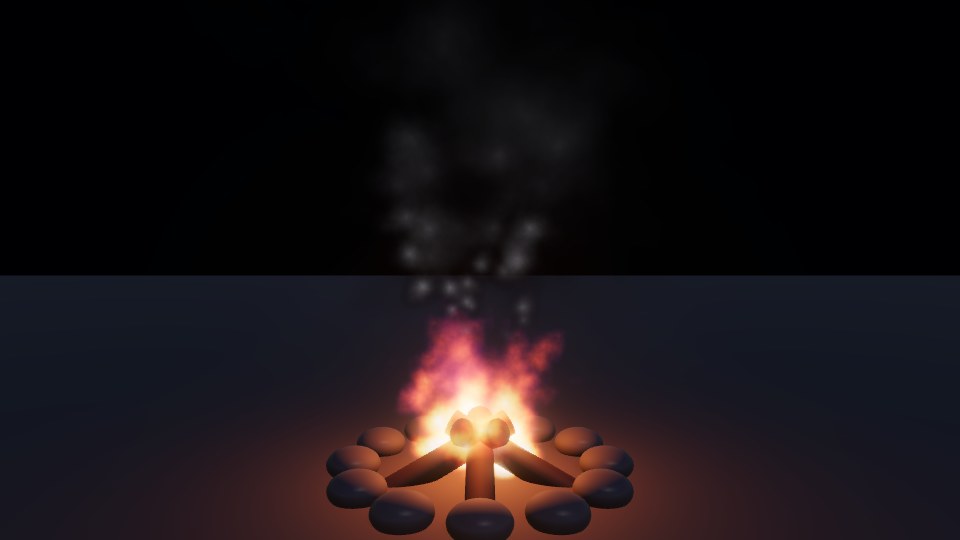
火焰没有专门的火焰序列帧,而是复用烟雾图集:Shader 里用“贴图浓度 × 顶点色 alpha(随寿命淡出)”作为温度去查 ramp_fire 渐变——新生的、浓的部分是黄白色,边缘和老化的部分退成暗红。一张灰度序列帧配不同的渐变图,就能得到火焰、毒烟、魔法烟等多种变体,这是控制特效贴图数量的常用手法。
UNITY_PARTICLE_INSTANCING_ENABLED 分支处理。本章的 Shader 只支持 Billboard 模式;如果要用 Mesh 粒子 + 实例化,需要参照 ParticlesInstancing.hlsl 增加实例化路径。